

About Us
The argument in favor of using filler text goes something like this: If you use real content in the Consulting Process, anytime you reach a review point you’ll end up reviewing and negotiating the content itself and not the design.
WooCommerce Bulk Product Upload With AI: How I Launch Catalogues for Indian D2C Sellers
WooCommerce Bulk Product Upload With AI: How I Launch Catalogues for Indian D2C Sellers
WooCommerce Bulk Product Upload With AI: How I Launch Catalogues for Indian D2C Sellers
I built this WooCommerce bulk product upload with AI workflow backwards from the part that usually causes trouble: the product sheet.
The AI was not the difficult bit. Messy SKUs, private image links, inconsistent tax classes and rows marked “same as above” caused far more problems during testing.
For this build log, I am following the workflow in the same order I would create it for an Indian D2C seller.
Log 1: WooCommerce bulk product upload with AI starts with the sheet
A product catalogue normally looks ready before it actually is.
The photographs are complete. Prices are approved. Product names exist somewhere, and the founder wants the store live.
Then the sheet arrives.
Example:
A catalogue contains 250 products. Some rows have complete descriptions, while others say same as above. Image links were copied from Google Drive, tax classes use different spellings and a few SKUs are missing.
The store owner sees 250 products. The workflow sees 250 chances for a failed API request.
That is why I begin with columns rather than nodes.
My starting sheet uses:
- SKU: A unique value for each product.
- Name: The product name exactly as it should appear.
- Price (INR): Numbers only, without the ₹ symbol or commas.
- Sale price: Blank when no offer applies.
- GST class: The slug of a WooCommerce tax class, such as
gst-5orgst-18. - HSN code: Saved as metadata because WooCommerce has no HSN field by default.
- Category ID: The WooCommerce category ID rather than the visible name.
- Image URLs: Direct public file links.
- Key features: Three to five factual points used by the model.
- Status:
ready, followed later byuploadedorfailed.
WooCommerce rejects duplicate SKUs, which gives the workflow a useful second layer of duplicate protection. The Status column provides the first layer by preventing rows already marked uploaded from entering another run.
I also store the returned WooCommerce product ID in the sheet. That ID becomes useful later when another workflow needs to update prices or stock without creating a new product.
The first lesson from my testing was simple: automation magnifies whatever is already in the sheet. Clean data produces a predictable store. Incomplete data produces errors more quickly.
Log 2: I compared WooCommerce bulk product upload CSV before building anything
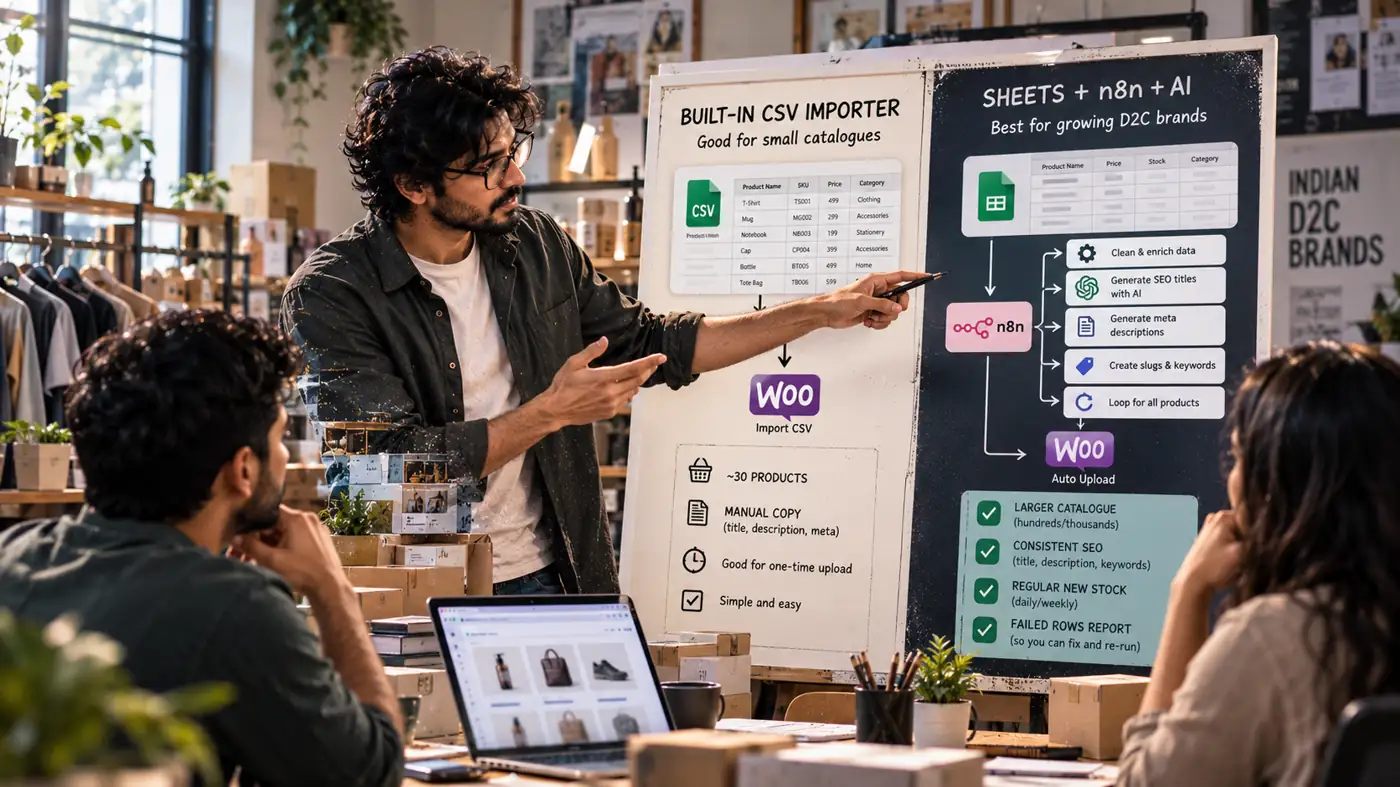
WooCommerce already includes a CSV importer under Products. For many sellers, the WooCommerce bulk product upload CSV route is enough.
I do not recommend n8n merely because AI sounds more advanced. A small catalogue with complete copy may need only the built-in importer.
This was the comparison I used before choosing the workflow:
| Point | WooCommerce bulk product upload CSV | Google Sheets plus n8n and AI |
|---|---|---|
| Working file | Export and edit a CSV before upload | Continue working in the existing Google Sheet |
| SEO copy | Write the extra columns manually | Generate SEO meta titles and descriptions from approved facts |
| Later additions | Export and import another file | Mark another row ready |
| Error behaviour | Import may fail or skip rows with a short message | One row can fail while the loop continues |
| Duplicate control | Reimporting can create problems | Status and unique SKUs reduce repeat creation |
| Setup | Almost none | Credentials, columns and workflow need configuration |
| Running cost | Free | The workflow hosting and model usage |
The WooCommerce bulk product upload CSV option makes sense when the seller has around 30 products and enjoys writing the copy.
The sheet-and-workflow approach becomes more useful when the catalogue grows beyond what one person can upload by hand, or new stock arrives regularly. It also helps when every product needs consistent SEO text and the seller wants failed rows reported separately.
The comparison prevented me from building more than the store needed. That matters because a founder should not maintain an API workflow when a normal importer already solves the problem.
Log 3: I mapped Google Sheets to WooCommerce before adding the model
The Google Sheets to WooCommerce mapping decides which value reaches each API field.
I tested the numbers and identifiers before generating a single sentence of copy.
The mapping works like this:
SKUgoes tosku.Namegoes toname.Price (INR)goes toregular_price.Sale pricegoes tosale_price.GST classgoes totax_class.HSN codegoes into product metadata.Category IDgoes intocategories.Image URLsgo intoimages.Key featuresbecome prompt input.Statusstays in the sheet and controls processing.
Normal Google Drive share links often fail because WooCommerce needs a direct public image URL. In testing, that failure created products with names and prices but no photographs.
The correction is to use direct file URLs or upload the images to the WordPress media library before creating the products.
The category field caused another easy-to-miss failure. The REST API needs the category ID, not the visible category name.
I then mapped the seven-node chain:
- Manual or Schedule Trigger
This starts the batch by button or schedule. When it is inactive or disconnected, nothing runs and no products are touched.
- Google Sheets: get rows
This reads rows where Status equals ready. If it returns nothing, the workflow ends quietly.
- Loop Over Items
This sends one product through the remaining nodes before moving to the next. Without the loop, all rows can hit external services together.
- OpenRouter chat model
This writes the approved SEO fields. If it fails, the workflow can still create the product, but the SEO copy will be missing.
- WooCommerce: create product
This calls the REST API and receives the product ID. When it fails, that product is not created.
- Google Sheets: update row
This saves the product ID and changes Status to uploaded. If this update fails, the same row may be tried again.
- Telegram: send message
This reports progress and failed rows before the loop continues. If it fails, the catalogue may still upload while the seller receives no progress message.
While drawing these connections, I noticed the same quiet-failure problem I covered in the article on suspicious login alert automation: the small broken link is often more dangerous than the impressive AI node. The next build waiting in my notebook is an HR helpdesk chatbot on Telegram, once I finish mapping and testing this catalogue workflow properly.
The Google Sheets to WooCommerce connection remains the stable path. The model contributes words, but the sheet controls the exact product data.
Log 4: I constrained AI product descriptions and SEO meta titles
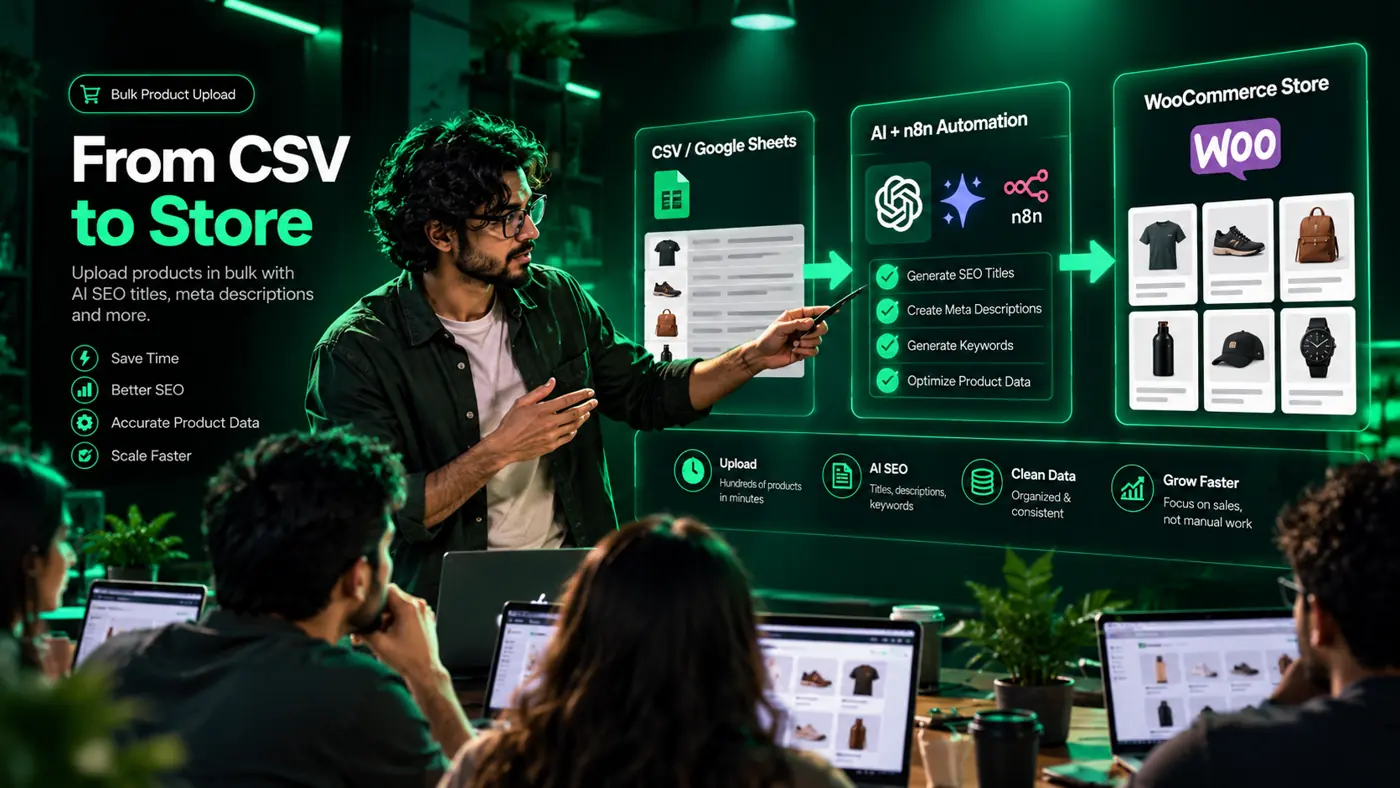
AI product descriptions can become vague very quickly when the prompt receives too little product information.
A model may add claims such as “best quality”, “premium” or “No. 1” even though those phrases do not appear in the sheet. That copy creates risk for the seller and makes many product pages sound identical.
I kept the model’s job narrow. It can write from approved facts, but it cannot decide the product name, price, stock, category or GST class.
The prompt rules are:
- Keep the meta title under 60 characters.
- Put the product name first and the brand last.
- Keep the meta description between 140 and 155 characters.
- Write for a buyer in India.
- Use only the fabric, size, weight, use and other facts supplied in the row.
- Do not invent quality, health, popularity or ranking claims.
- Do not include price because prices can change while an old search snippet remains visible.
- Return clean JSON with two predictable fields.
The workflow can ask for a short product description in the same request. Sellers who already have written copy can switch that part off.
The OpenRouter node receives only the information needed for that product. It does not rewrite the store’s exact numerical fields.
Example:
The loop receives this row:
- SKU:
HS-104 - Name:
Cotton handblock kurta - Price:
₹1,299 - GST class:
gst-5 - Category ID:
18 - Images: Three links
- Features:
pure cotton, Jaipur print, regular fit
The model can return a title such as:
Cotton Handblock Kurta, Jaipur Print | Brand
It can also return a 150-character description based on the listed facts.
The WooCommerce node sends the row and generated copy in one API call. The store returns a product ID, the sheet saves it and Telegram reports the progress.
SEO meta titles need constraints because search copy is too visible to leave entirely to model style. A factual, consistent result is more useful than a clever line that invents a benefit.
The same is true for AI product descriptions. Drafting is useful; unsupervised claims are not.
Log 5: I slowed WooCommerce bulk product upload with AI down on purpose
Sending all 250 rows through the model and WooCommerce together looks faster on paper. It created exactly the kind of unreliable batch I wanted to avoid.
Three things can go wrong.
First, model providers apply rate limits. A burst of 250 requests can cause random failures, leaving some products without copy.
Second, many Indian WooCommerce stores use shared hosting. Creating 250 products while downloading their images can cause timeouts.
Third, a large simultaneous batch makes one bad row harder to identify. Some products may already exist while the execution log shows a failure somewhere in the middle.
Loop Over Items handles one product per pass:
- Read the row.
- Generate the copy.
- Create the product.
- Save the returned ID.
- Update the Status.
- Send the progress message.
- Continue to the next row.
Example:
Row 147 contains a broken image link.
Only row 147 fails. Earlier products remain created, and later rows can continue when the error path permits it. The sheet shows which row needs attention.
A rerun picks up rows still marked ready. Rows marked uploaded remain outside the next batch.
On slower hosting, I add a short Wait node inside the loop. The batch takes longer, but the server receives fewer product-creation requests together.
One-at-a-time processing is slower. A catalogue containing a few hundred products can still finish while the seller has dinner, and fixing only the failed rows is much calmer than investigating a half-created store.
A single cover image would not explain this build properly. For the WooCommerce bulk product upload with AI walkthrough, I am drawing the sheet map, node path, one-row loop and failure branches so readers can see exactly where each value moves.
For scheduling the work, I reserve at least seven days between receiving access and completing handover. A normal custom workflow usually fits within a seven-to-ten-day window, while a larger industry-specific catalogue needs more discussion through calls and email before the plan is fixed.
The seller can follow the build rather than waiting for a surprise at the end. I explain the structure during a detailed phone conversation, continue the walkthrough on Zoom and share my screen while I map, connect and test the nodes.
This walkthrough uses one automation platform as the example. A client can choose another platform, or an existing workflow can be edited instead, and my team works to that requirement.
Log 6: Telegram notifications showed me where the batch broke
Telegram notifications are useful because the seller should not need to keep the execution screen open.
The message can include the current row, product name, upload result and error text. That gives the seller a direct pointer to the row that needs correction.
These were the failures I tested:
- WooCommerce returns 401: The key is incorrect or has Read permission only. Create a REST API key with Read/Write access.
- The API URL returns 404: WordPress permalinks may be set to
Plain. Change them toPost name. - The product has no images: The links are Google Drive sharing pages instead of direct image files. Replace them or upload the images to the media library.
- WooCommerce reports an invalid or duplicated SKU: The SKU already exists or is incorrectly formatted. Correct it or treat the product as uploaded.
- The product exists but SEO fields are empty: The metadata keys do not match the SEO plugin. Test the exact Rank Math or Yoast keys on one product.
- The model returns broken text: The response ignored the JSON structure. Tighten the prompt and add parsing with a retry.
- No Telegram message arrives: The bot may not have received
/start, or the chat ID may be incorrect. - The same product appears twice: The Sheets update failed after product creation. Repair access and retain unique SKUs.
The final failure is why the update-row node matters. If the sheet stays ready, the next run does not know that WooCommerce already created the product.
The unique SKU acts as the second lock. WooCommerce can then reject the repeat instead of quietly creating another product.
Telegram notifications do not fix the error. They reduce the time between failure and correction.
If an upload is already failing and you want me to review the pattern, email upcomingtool@gmail.com with the error text and an anonymised sample row. Do not send store passwords, API secrets or customer order data.
Log 7: I tested credentials with three rows, not the full catalogue
The setup has eight steps, and I follow them in this order:
- Prepare the sheet. Add the mapped columns and mark three test rows as
ready. - Create WooCommerce keys. In WooCommerce settings, open Advanced and REST API, then create a Read/Write key. Copy the consumer key and secret because the secret is shown once.
- Create tax classes. Add the GST classes used by the store and note their slugs.
- Create an OpenRouter key. Add a credit balance, create the key and select a model that follows JSON instructions.
- Create a Telegram bot. Use BotFather, send
/startfrom the account and record the chat ID. - Add credentials to the workflow platform. Configure Google Sheets, WooCommerce, OpenRouter and Telegram.
- Build the nodes. Keep the seven-node order and set the loop batch size to
1. - Run the three test rows. Inspect the price, tax class, category, images, description and SEO fields before adding more
readyrows.
Testing three products is enough to catch the main mapping mistakes before they spread across the catalogue.
I use products that differ from one another during testing. One can have a sale price, another can use a different GST class and another can include several image links.
The OpenRouter key and WooCommerce secret stay inside credentials. They should never be pasted into the sheet because every person with sheet access would then hold store credentials.
The seller also needs a separate Telegram group containing only the people responsible for the store. Progress and failure messages can disappear quickly inside an ordinary family or team chat.
The privacy policy explains how product sheets, store access and catalogue samples shared during a build are handled.
On running cost, a cloud-hosted setup has monthly plans, while self-hosting requires a server that somebody maintains. The model router charges according to the selected model and usage.
A short product title and description form a small request, but current prices should still be checked before choosing the provider and hosting setup. The refund policy explains the terms for paid implementation work before a full catalogue build begins.
Log 8: I changed the prompt and fields for each industry
The seven-node chain can remain the same across stores. The sheet columns and writing instructions need to match the products.
For fashion and ethnic wear, I add:
- Size.
- Colour.
- Fabric.
- Fit.
- Wash care.
The copy can mention fabric and fit when those facts appear in the sheet. Variable sizes require variable products, which need separate handling.
For handicrafts, I add:
- Craft name.
- Region.
- Material.
- Dimensions.
The prompt may mention a region or craft only when the sheet provides it. It must never invent a GI tag or artisan story.
For groceries and snacks, I add:
- Weight.
- Shelf life.
- Vegetarian or non-vegetarian status.
- FSSAI note.
The copy should state pack weight and taste plainly. It should not make health claims unless the label supports them.
For electronics and accessories, I add:
- Model number.
- Compatibility.
- Warranty.
The model number should lead the title, and compatibility must come from the sheet. Warranty text also comes from the seller rather than the model.
B2B stores listing spare parts or stationery need a plainer specification style. The same Google Sheets to WooCommerce path still works, but the prompt should stop sounding like consumer advertising.
Stores selling through Amazon, Flipkart or Meesho may reuse the same sheet later. I normally begin with WooCommerce because the seller controls every product field and can correct mistakes directly.
SEO meta titles should also reflect the industry. Fashion copy can mention fabric and fit, while an electronics title should prioritise model and compatibility.
The about page explains who is behind UpcomingTools and why my team focuses on practical automation for Indian founders, sellers and small businesses.
Log 9: I prepared the handover before running the full catalogue
A build is not complete when the products appear in WooCommerce. The seller needs to understand how to add another row, identify a failed image and avoid uploading the same SKU twice.
My team’s handover covers:
- Sheet review: Columns, SKUs, image links and category IDs are checked.
- Store review: Tax classes, SEO plugin, permalinks and hosting limits are confirmed.
- Prompt tuning: The writing rules are tested against products the seller understands well.
- Test batch: A small batch is uploaded and every visible error is corrected.
- Full run: The catalogue proceeds through the loop with progress messages.
- Handover: The seller learns how to add rows, read errors and rerun failed products.
The AI product descriptions, credentials and product data remain in the seller’s accounts.
A second workflow can later use the saved product IDs to update stock or prices without creating new products. That is why I preserve the returned ID from the first upload.
After handover, adding a product is a matter of completing another row and marking it ready. The seller should not need my team for every new item.
Log 10: What I would tell a seller before they start
Do not begin with AI. Begin with three clean product rows.
Check the SKU, price, tax class, category ID and image links. Decide whether the built-in importer already solves the problem.
Use automation when the catalogue is large, new products arrive regularly or writing and tracking every row has become a real burden. Keep the free importer when the catalogue is small and the copy is already complete.
Do not let the model decide numerical fields. Use it for controlled writing based only on approved product facts.
Most importantly, keep one person responsible for the sheet. A workflow cannot protect the store from several people changing columns in different ways.
Would it help to see what the workflow produces before deciding?
Send sample product rows and the SEO plugin used by the store through the contact page.
